How to install your eSIM
All you need is our email with the subject "Your eSIM for … is ready". The easiest way to install is with the button. You only need the QR code or the activation code if the button doesn’t work.
Important: The button and the activation code work on the very phone the eSIM is for: that is where the email gets opened. The QR code is scanned by that phone from a second device. Installing needs Wi-Fi or mobile data, so ideally it happens before you travel.
Quick start with the button
-
1Open the email on the phone
On the phone the eSIM is for, in your mail app. In a messenger, the links often do not work.
-
2Tap the button for your phone
"iPhone (iOS)" or "Android". Your phone then opens the installation, no typing needed. If the buttons are missing, you can continue with the activation code.
-
3Confirm
Your phone asks once more, then the eSIM is installed. To get you online on the go, it still needs data roaming.
That completes the installation. If something does not work, there are two more ways: the QR code or manual entry.
Turn on data roaming
Without data roaming, you are not online with the eSIM. It gets switched on once you are travelling and want to use the eSIM.
iPhone: Settings → Mobile Data → select the new eSIM → enable Data Roaming.
Android: In the SIM settings, select the new eSIM and turn on roaming. The exact labels vary by manufacturer.
By QR code
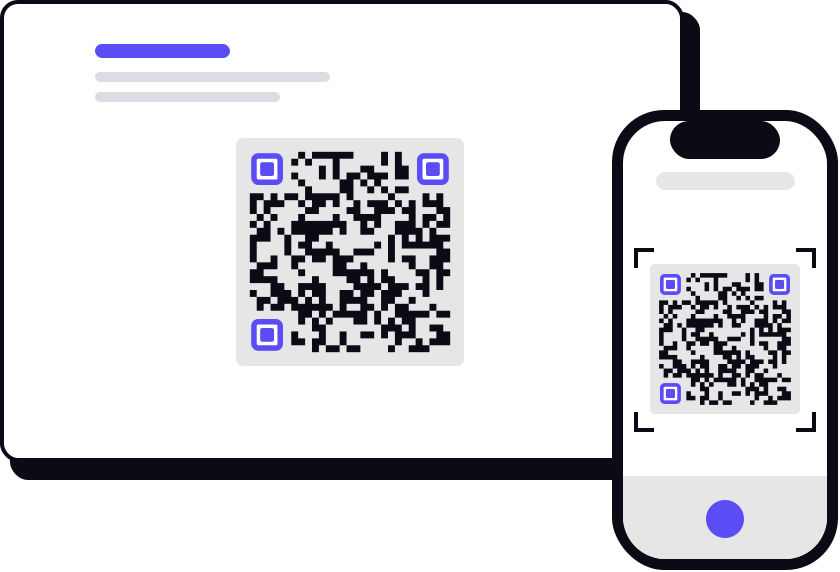
This needs a second device, for example a PC, laptop, tablet or a second phone. With only one device, the button or manual entry is easier.
The QR code is in the email with your eSIM, below the activation code. The QR code also waits in your account, or behind the order link if you bought as a guest.
- Open the email on the second device, so that the QR code is on screen.
- On the iPhone, point the Camera at the QR code and follow the notice on the screen.
- Open the email on the second device, so that the QR code is on screen.
- On the Android phone, choose "Add eSIM" in the SIM settings. The scanner opens by itself; scan the QR code with it.
By manual entry
On iPhone (iOS)
-
1. Settings → Mobile Data
-
2. "Add eSIM"
-
3. Paste the activation code
- Open Settings → Mobile Data / Cellular.
- Tap "Add eSIM" or "Add Cellular Plan", depending on your iPhone.
- Choose "Enter Details Manually" at the bottom (before iOS 17.4: "QR code can't be scanned").
- Paste the activation code from the email and tap "Next".
- Confirm with "Add Cellular Plan". The eSIM will be installed.
On an Android phone
-
1. Settings → SIM settings
-
2. "Add eSIM"
-
3. Paste the activation code
The exact labels vary by manufacturer (Samsung, Google Pixel, Xiaomi …), but the steps are similar everywhere:
- Open Settings. The way in is named differently by each manufacturer:
- Samsung: Connections → SIM manager → "Add eSIM"
- Google Pixel: Network & internet → SIMs → "Add SIM" → "Set up an eSIM"
- Xiaomi: SIM cards & mobile networks → "Manage eSIM" → "Add mobile plan"
- If you find none of these: search your settings for "SIM".
- Your phone now wants to scan a QR code. That is not a dead end, you can type the code instead:
- Samsung: "Enter activation code"
- Google Pixel: tap "Need help?" at the bottom, then "Enter it manually", then "Enter code"
- Paste the activation code from the email and confirm.
- Follow the steps until the eSIM is activated.
Rename the eSIM
With a name of your own, "Travel" for instance, the eSIM is easier to find in your settings.
- iPhone: Settings → Mobile Data / Cellular → tap the eSIM → "Cellular Plan Label" → choose your own label.
- Samsung: Settings → Connections → SIM manager → tap the eSIM and rename it.
- Google Pixel: Settings → Network & internet → SIMs → tap the eSIM → pencil icon → Save.
Will my phone work?
One check, one minute. Ideally before you buy. You are looking for the EID, a long string of digits. If your phone has an EID, it can use an eSIM.
- On iPhone: Settings → General → About. If an EID is listed there, your phone works.
- On Android: Settings → About phone. The exact labels vary by manufacturer; look for "EID". On many devices the code *#06# in the phone app also shows the EID next to the IMEI, but not on all of them.
No EID to be found? Then you can write to us before you buy, with your phone model and the country you bought it in. We'll check and tell you whether it works.
This is worth doing in particular for iPhones sold in mainland China, Hong Kong or Macau: only a few models there support eSIM, including current and expensive ones. And a phone you got abroad at a discount together with a mobile contract may be tied to that provider.
Do you have an iPhone 12 or older and already use your own number as an eSIM? Then only one of the two eSIMs can be active. While you use our eSIM, your own is switched off. Calls and texts to your number won't reach you during that time. WhatsApp, iMessage and FaceTime keep working with your number. If WhatsApp asks to verify your number again during that time, this only works with your own eSIM switched back on. With a physical SIM card in the phone, this limit doesn't apply.
Info
- Your existing SIM and your number stay. The eSIM is added alongside. For mobile data abroad, set the eSIM as your data line.
- The days count from the first connection to a network. So you can install the eSIM before that.
- For plans that include Austria, the days start as soon as you set up the eSIM in Austria. It's best to set it up once you arrive.
- If you top up the eSIM later, it stays on your phone. There is nothing to install again.
- Best keep the activation code until the eSIM is running. The code is valid for one device only. You cannot move it to a second phone.
- When you set it up, your phone asks for a label for the new line. That one is yours to choose, "Studisim" for instance. The provider name it shows, though, is the one stored in the eSIM profile, not ours. That is normal, and it says nothing about which network you are on.
- If you select a network manually in your settings, that choice stays in place, even when you change country. Your device will then find no network in the new country. Set network selection back to "Automatic" before you travel on.
Error on the second try?
You cancelled the installation, and the second try shows an error such as “eSIM could not be activated”? Then the eSIM is probably already on your phone. An eSIM can only be installed once.
How to check: on iPhone under Settings → Mobile Data (or Cellular), on Android in the SIM settings. There is a new eSIM, for example without a name or called “Secondary”. Tap the eSIM, turn it on and choose it for mobile data. Once you are travelling, it also needs data roaming.
No new eSIM there? Then you can write to us, ideally with a screenshot of the settings. We will check before you buy a new eSIM.
All set? Here is where to go next: