Back to the home page

Help

Example email: what your eSIM email looks like

This page shows an email with made-up details. The code and QR code don't work. Your real email arrives after payment at the address in your order.
From:
noreply@mail.studisim.at
Subject:
Your eSIM for Turkey 5 GB is ready
studisim.at
studisim.at
 

Your eSIM is ready!

What you bought

Turkey 5 GB

30 days, counted from the first connection to a network. So you can install the eSIM right now.

1 · Install

It's best to open this email on the phone you want to use the eSIM on and tap the matching button there.

iPhone (iOS)
Android

The buttons work from iOS 17.4 and on recent Android devices.

Nothing happening? Further down you will find step-by-step instructions.

An eSIM can only be installed once. If a second try shows an error, it is probably already in your settings.

2 · Turn on data roaming

Turn on data roaming for the eSIM as soon as you want to use it. Without data roaming, you are not online with the eSIM.

Something not working?

Step by step: Install your eSIM ›

Common questions ›

Still stuck? Just reply to this email — or use the contact form ›.

Install by hand

iPhone: Settings › Mobile Data › "Add Cellular Plan" › Enter Details Manually, then paste the code below.
Android: Settings › SIMs or SIM manager › Add eSIM. When the QR scanner opens: enter the code by hand and paste the code below.

Your activation code (SM-DP+ address):

LPA:1$nicht-gueltig.invalid$NICHT-GUELTIG

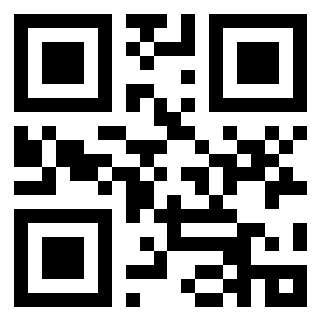
QR code with your activation code

Reading this email on another device? Then scan the code with the phone you want to use the eSIM on.

If you have an account, you'll find your code there later too — in your account on studisim.at. Enjoy your trip!

If it worked, pass it on — here's the line to copy:

I got my eSIM from Studisim, no subscription. https://studisim.at/en/

© 2026 Studisim · studisim.at · Legal notice · Privacy

What the email contains

  1. Your plan

    This shows what you bought. The days count from the first connection to a network. So you can install the eSIM right now.

  2. One tap on the button

    You open the email on the phone the eSIM is for and tap the button for your phone. Setup starts on its own.

  3. Data roaming

    At your destination, you turn on data roaming for the eSIM. Then it's online.

  4. Help

    Questions or problems? Just reply to the email.

  5. The activation code

    If the button doesn't open anything, you type or paste this code into your phone's settings.

  6. The QR code

    If you read the email on a laptop or tablet, you scan the QR code with the phone the eSIM is for. Each eSIM goes on exactly one phone.